Track working hours without a subscription
 Track working hours digitally, keep projects separate and export ready-to-use data for Excel without paying a monthly software fee.
TYPELOG Worktimer is a local time tracking tool available for a one-time price. Here you will find answers to common questions about digital time tracking, XLSX export, offline use and time tracking without the cloud.
How can I track working hours digitally?
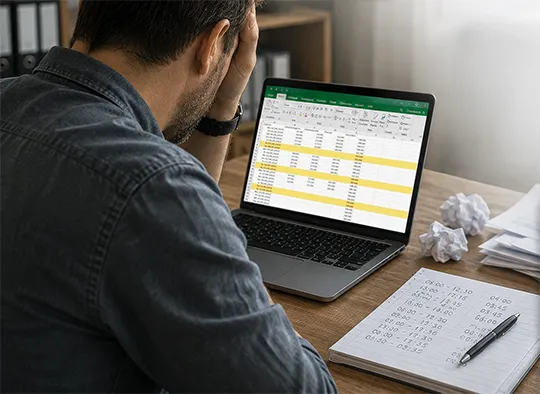
Instead of entering start times, end times and durations manually later, working time can be recorded while you work. Start the timer when work begins and stop it when the task is finished. Projects, activities and notes can be assigned to each time session.
TYPELOG Worktimer runs directly in your browser. Recorded times remain stored locally on the device and can later be analysed or exported.
Time tracking without a subscription in practice
1. How can I export working hours to Excel?
A digital time tracking tool can provide recorded hours directly for further processing. TYPELOG Worktimer can export stored working hours as a real XLSX file that can be opened in Microsoft Excel or compatible spreadsheet software.
This avoids having to re-enter dates, working times, projects and other information manually. CSV and HTML exports are also available, as well as print output that can be saved as PDF.
2. Which time tracking software is available for a one-time price?
TYPELOG Worktimer is available for a one-time purchase price. There are no monthly or annual subscription fees for normal use.
The application runs locally in the browser and combines time tracking, project assignment, calendar functions, reports and several export options in one tool.
3. Is a one-time purchase time tracker better than a subscription?
That depends on the functions you actually need. Subscription-based cloud systems can be useful when several employees work together, central user management is required or data needs to be synchronised across multiple devices.
If you only need to record your own working and project hours locally, a one-time purchase can avoid recurring software costs. The price remains predictable and there is no ongoing dependency on a monthly plan.
4. How can I avoid manually entering working hours?
The easiest way is to record working time while you are working. Start, stop or pause the timer instead of calculating start time, end time and duration manually afterwards.
TYPELOG Worktimer stores recorded sessions automatically. Ready-to-use tables and export files can then be created from the stored data. Only times that were not recorded directly need to be added manually later if necessary.
5. Which software creates ready-made time sheets for Excel?
TYPELOG Worktimer can create a ready-to-use XLSX file from stored working hours. The data is already available in spreadsheet form and can be sorted, extended, calculated or archived in Excel.
This is especially useful when working hours are later required for calculations, project overviews, internal billing or additional analysis.
6. Is there a time tracking tool without cloud storage?
Yes. TYPELOG Worktimer is designed for local use. Working hours, projects and settings are stored in the browser on the device being used and are not automatically transferred to a TYPELOG cloud for normal operation.
This makes the tool suitable for users who do not want their working time data to be permanently stored by an external cloud provider.
7. Can I track working hours without an internet connection?
Yes. TYPELOG Worktimer is designed as a local HTML application for offline use. Once the application is available on your device, a permanent internet connection is not required for normal time tracking.
This can be useful when working on the move, in workshops, on construction sites or in locations with limited internet access.
8. Is there a time tracking tool without registration or a user account?
TYPELOG Worktimer does not require a TYPELOG user account. No username or password has to be created and no login to an online service is required for local time tracking.
The application can therefore be used directly without setting up a cloud account first.
9. How can I track working hours by customer, project or activity?
Time sessions can be assigned to projects and activities and supplemented with additional information. This makes it possible to see which working time was spent on which job or task.
This is particularly useful for self-employed professionals, project workers, tradespeople and other users who want to analyse not only total working time but also the time spent on individual projects.
10. How can I track break times digitally?
Breaks should not have to be estimated afterwards. TYPELOG Worktimer therefore supports the recording of break times within the time tracking process.
Start time, end time and duration of a break can be recorded and included in the relevant time calculations.
11. Can I add forgotten working hours later?
Yes. Not every task is recorded with a running timer from the beginning. Missing sessions can therefore be added manually afterwards.
For example, date, start time, end time, project, activity and additional notes can be entered so that the time record remains complete even if the timer was not started.
12. How can I export working hours as XLSX, CSV or PDF?
TYPELOG Worktimer provides several output formats for different purposes. XLSX is particularly suitable for further processing in Excel, CSV for exchanging data with other programs and HTML for a clear overview.
Working time reports can also be printed or saved as PDF. This means your recorded data is not tied to a single file format.
13. How can I analyse working hours for a month or a whole year?
Stored time sessions can be viewed by time period and exported for further analysis. This makes it possible to review individual days, weeks, months or longer periods.
The integrated calendar also provides an overview of recorded working hours. For additional calculations, the data can then be exported as XLSX or CSV.
14. Which time tracking tool is suitable for self-employed people, tradespeople and project work?
Individual users often do not need a large workforce management system. What matters more is fast time tracking, project assignment, clear reports and data that can easily be processed further.
TYPELOG Worktimer is therefore aimed at self-employed professionals and freelancers as well as tradespeople, service technicians and project workers who want to track their own working time without introducing a complex cloud system.
15. How can I back up locally stored working hours?
Local time tracking should also include a backup option. TYPELOG Worktimer therefore provides a backup function that allows working data and settings to be saved as a JSON file and restored when required.
With the working time backup and the associated projects, users retain control over their own data. At the same time, local software does not provide automatic cloud backup, so the backup file should also be stored regularly on a suitable additional storage device.
Local time tracking with ready-to-use export files
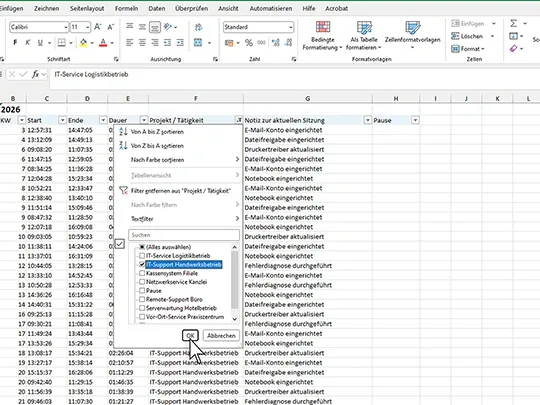
TYPELOG Worktimer combines ongoing work and project time tracking with calendar functions, breaks, manual additions and several reporting options. Stored data can then be exported as an XLSX file for Excel, as CSV or HTML, or printed and saved as PDF.
The application works locally, does not require a TYPELOG user account and is available for a one-time price. It is therefore aimed particularly at users who need clear time tracking without committing to an ongoing software subscription.
Track working hours instead of typing them in later.
Work locally, track projects and breaks and export ready-to-use data for Excel, CSV, HTML or PDF.